Split an image into rows, columns or a grid
Choose one image, preview the cut lines, and download numbered PNG pieces in a ZIP. Processing stays in your browser; no account or image upload to a server is needed.

Split your image
Choose rows, columns or a square grid. All pieces are exported as PNG in one ZIP.
Choose one image
JPG, PNG, WebP or AVIF; up to 10 MB. Images are processed on your device.
Split Preview
See how your image will be split before downloading
What this tool does
A focused image cutting tool with a visible preview and predictable downloads.
Free, without an account
Use the image splitter without signing up or paying. Each operation processes one image.
Choose or drop a file
Select a JPG, PNG, WebP or AVIF file up to 10 MB. Your browser must be able to decode the format.
Preview the cut lines
See the row, column or grid boundaries before downloading. Large images can take longer on devices with limited memory.
Local image processing
The selected file and its pieces are handled on your device. The splitting tool does not send image files to a server.
Rows, columns and square grids
Create 2–9 horizontal or vertical pieces, or select a 2 × 2 or 3 × 3 grid.
PNG output at source resolution
Pieces use source pixels without resizing and are exported as PNG. Metadata, animation and the original file encoding are not preserved.
How to split a picture
Check the preview before exporting; the ZIP filenames follow the image order.
1. Choose an image
Select or drop one JPG, PNG, WebP or AVIF file up to 10 MB. Keep a copy of your original.
2. Choose a direction
Vertical creates columns; horizontal creates rows. Grid creates a 2 × 2 or 3 × 3 set of tiles.
3. Set the piece count
Choose 2–9 pieces for rows or columns, or 4 or 9 tiles for a grid. Check that important details do not sit on cut lines.
4. Download the ZIP
Select Split and Download and extract split_images.zip. The files piece_1.png onward run left to right, then top to bottom.
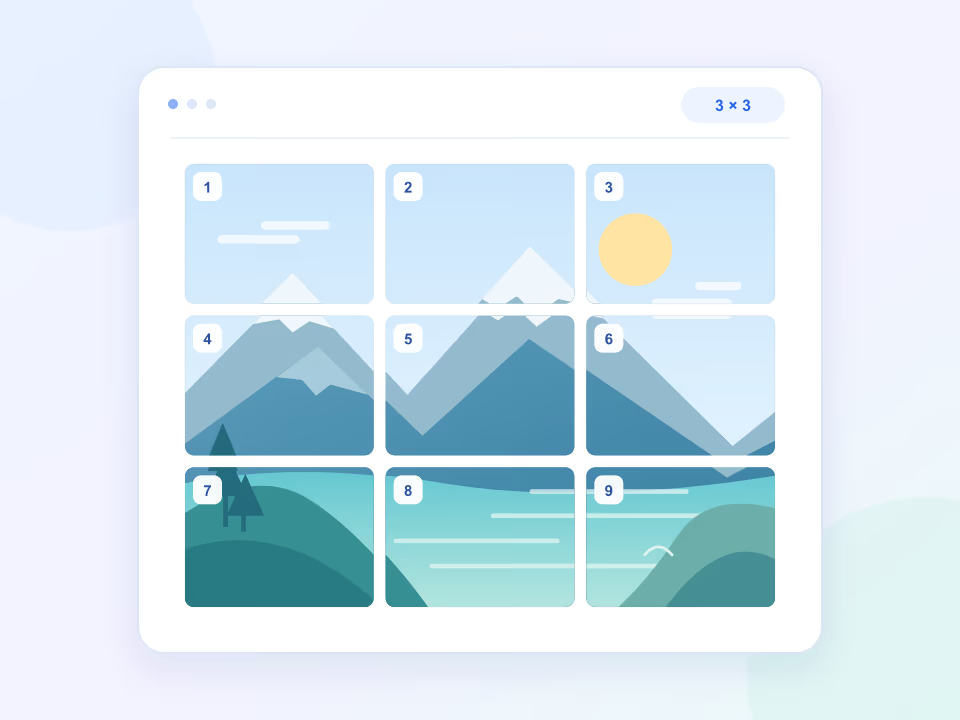
One photo, a new perspective
Split an image into a 3 × 3 grid online
Turn a single photo into nine tiles for a social media grid, a mood board or a creative layout. Use the grid preview to see where each piece begins before you save the result.
- Choose a 3 × 3 grid for nine pieces or a 2 × 2 grid for four.
- Prepare the photo’s aspect ratio for your layout before splitting.
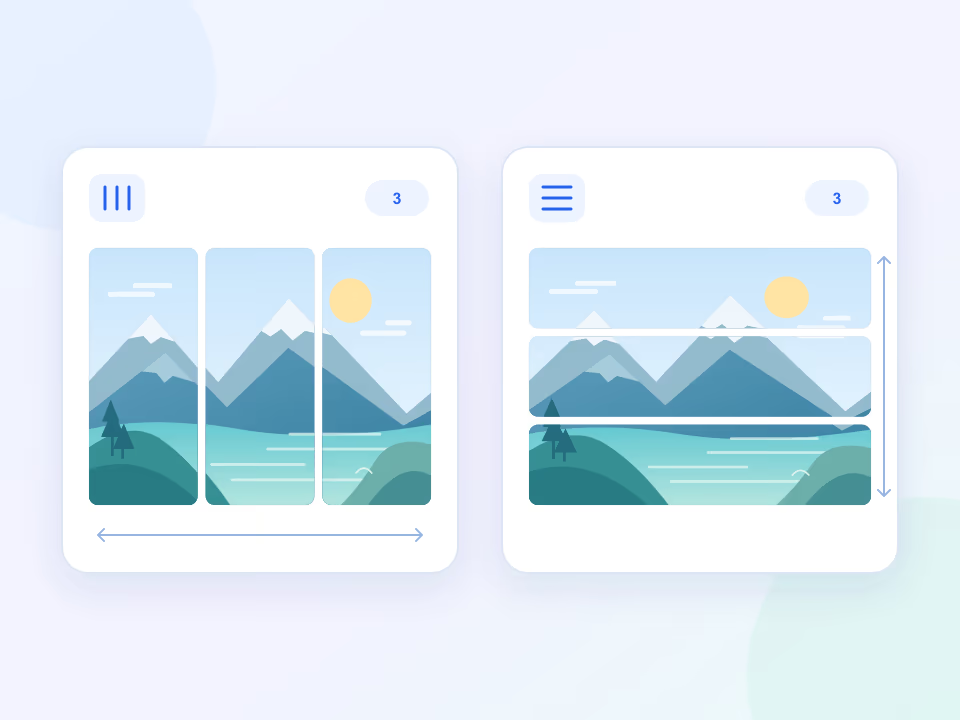
Make room for the whole scene
Split an image horizontally or vertically
Divide a wide panorama into vertical panels for a carousel, or cut a tall image into horizontal sections. Choose between 2 and 9 parts and check the cut lines in the live preview.
- A 3600 × 1200 image split into three columns makes three 1200 × 1200 panels.
- Switch between rows and columns to find the right composition.
Your photos stay on your device
Split images online without uploading your photos
Open a photo and split it directly in your browser. Image processing and ZIP creation happen on your device, so you can work without sending the image to a server or creating an account.
- Open JPG, PNG, WebP or AVIF files up to 10 MB, if your browser can decode them.
- Use the online image splitter without installing an app.
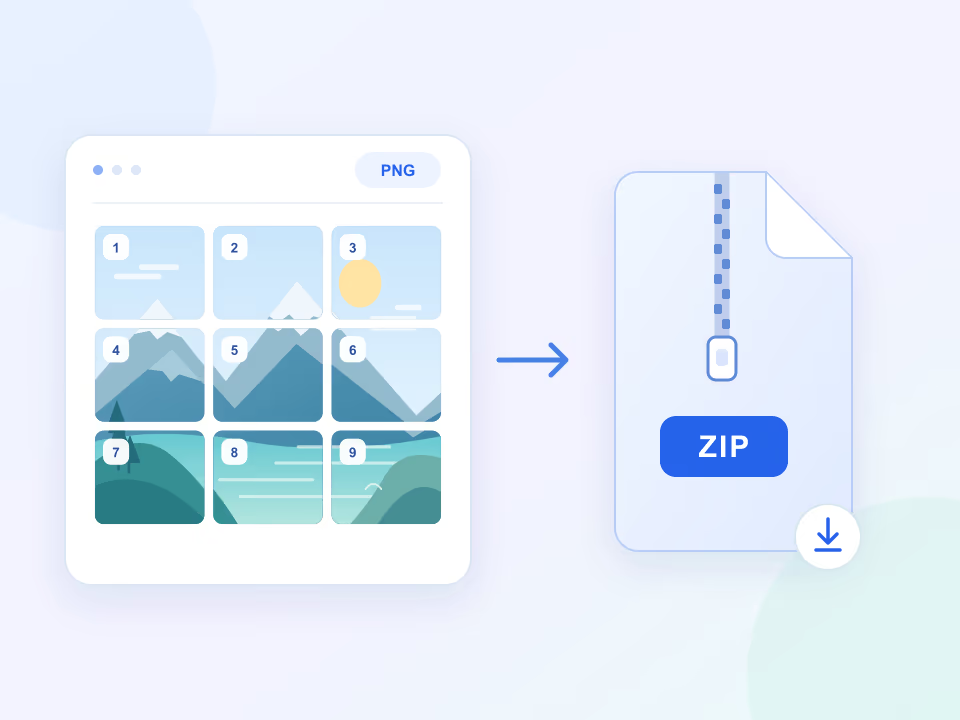
From one image to ready-to-use pieces
Download split image tiles as numbered PNG files
Save all your image pieces together in one ZIP. Each tile is exported as a PNG and numbered from left to right, then top to bottom, so you can identify its place in the original picture.
- Download split_images.zip with piece_1.png, piece_2.png and the remaining tiles.
- Keep the source pixel regions without resizing; uneven divisions can differ by one pixel.
Choose a split for your project
The tool cuts pixels; plan any cropping, resizing or publishing separately.
A multi-post grid
Use a 3 × 3 grid for nine tiles. Check the current profile thumbnail crop before publishing: the tool does not adapt images to a platform automatically.
- Nine numbered tiles
- Preview the thumbnail crop
- Plan the post order
A panorama sequence
Split a wide picture into vertical columns for a carousel. A 3600 × 1200 image cut into three columns produces three 1200 × 1200 pieces.
- Three-part panorama
- Sequential story panels
- Landscape photo series
Separate image panels
Create assets for a layout that needs independent image sections. Splitting alone does not guarantee smaller files or faster loading; PNG outputs can be larger than a JPG source.
- Independent layout panels
- Check exported file sizes
- Compress assets separately
Artwork and printing plans
Split an illustration into rows, columns or a grid. For printing, set paper size, margins, bleed and physical scale in your print software.
- Three-panel artwork
- Grid composition studies
- Print layout preparation
Free online image tools
Resize, crop, rotate, convert and compress images in your browser. Choose a tool, open an image and download the result without uploading your file.
Image splitter
Divide one image into columns, rows or a grid and download all the pieces in a ZIP file.
Open toolImage resizer
Resize an image to exact pixel dimensions or scale it by a percentage. Keep its proportions or choose a custom width and height, then download it in PNG, JPEG or WebP.
Open toolImage cropper
Remove unwanted edges and focus on the part that matters. Use a square, landscape or portrait crop, move the selection and download the cropped image.
Open toolRotate and flip images
Turn a sideways photo, rotate an image in 90-degree steps or mirror it horizontally or vertically. Preview the result and save a new copy.
Open toolImage format converter
Convert JPG, PNG, WebP or AVIF images to PNG, JPEG or WebP in your browser. Choose a format that suits your image and compare the output file size.
Open toolImage compressor
Reduce image file size by choosing JPEG or WebP and adjusting the quality. Compare the original and result sizes and download a version that suits your needs.
Open toolQuestions about splitting and downloads
Practical limits, output formats and ways to check your result.
Which file formats can I use?
The tool accepts JPG/JPEG, PNG, WebP and AVIF files that your browser can decode. Every exported piece is a PNG, even when the source is a JPG. Animated images, metadata and the original encoding are not preserved.
What is the file size limit?
The maximum file size is 10 MB. Pixel dimensions also affect memory use: a compressed image can still be too large for a mobile browser. If processing fails, reduce the dimensions in an image editor and try again.
Are my pictures sent to a server?
No. File reading, previews, splitting and ZIP creation happen inside your browser. Visiting the website still makes normal network requests for the page and its assets; see the privacy policy for website data and third-party services.
Can I set custom sizes or unequal pieces?
This version offers 2–9 equal row or column divisions and square grids of 4 or 9 tiles. There are no custom pixel sizes, unequal cuts, cropping controls or platform presets. When a dimension is not divisible by the number of cuts, pieces differ by at most one pixel.
Will a grid line up on my social profile?
A 3 × 3 cut creates nine tiles, but the service where you post them controls thumbnail cropping and ordering. Test the current preview before publishing. For a profile that puts the newest post first, a planned reverse posting order may be needed. The splitter does not publish or guarantee alignment.
Can I process several images at once?
The tool processes one image at a time. Remove the current image and select the next one to repeat the operation. There is no batch mode or paid version.
What is inside the download?
The download is split_images.zip containing piece_1.png, piece_2.png and so on. Columns are numbered left to right, rows top to bottom, and grids left to right across each row before moving down.
Do cuts lose pixels or make the picture sharper?
Each source pixel belongs to one piece; integer boundaries avoid gaps and overlaps. The tool does not enlarge or sharpen the picture. Canvas decoding and PNG encoding can change color handling and remove metadata, so keep your original file.